


Tactical
4 Steps to Build a Customer Stage Tracker in Salesforce
Salesforce shows you where a deal sits right now. It was never built to tell you how it got there, or how long it’s been stalling.

Cliff Simon
September 23, 2026
During your monthly forecasting call, the same high-impact deal from last month is sitting in Validation. You know it was there last month, but what about the month before? The CRO asks the obvious question: how long has it actually been there? The rep guesses. The manager guesses higher. Nobody actually knows, because the CRM only shows the current stage, not the path that got the deal there or how much time it burned along the way.
That gap isn’t a data entry problem. It’s a Salesforce gap. Salesforce’s stage field and Path feature are built to show a snapshot of where this opportunity sits today, not calculate how long a record spent in that stage, whether it skipped one, or how often deals convert to the next stage. If you want that, which most RevOps leaders do, you have to build it.
We built exactly that for one of our clients, Figment, who had the same blind spot. They had plenty of visibility into where deals were, but none into how they were moving through the funnel. Their client details throughout have been generalized to protect confidentiality but here’s a look at the stage tracking we built for them, how we built it, and what it actually answers once it’s running.
What Stage Tracking Actually Buys You
It replaces guessing with visibility. Instead of a rep or manager estimating how long a deal has been stuck, the system tells you, for every record, in every stage, automatically.
It makes forecasting a data exercise instead of a gut check. Once you know how long deals actually spend in each stage and what percentage convert to the next one, forecasting stops being a story someone tells on a call and starts being a calculation.
It surfaces exactly where your process breaks. A stage with a high drop-off rate or an unusually long average time becomes a number you can point to and go fix instead of a mystery someone has to go dig into.
It also gives every team a shared definition of progress. Sales, support, and project teams often disagree about what “on track” means. A stage tracker forces the definition into the open and drives alignment on what the order of progress is, how long each step should take, and what “stuck” looks like.
None of this is specific to the sales pipeline either. Because the tracker works off any object with a status or stage field, the same logic can run on support cases moving toward resolution, projects moving through milestones, or orders moving toward delivery. We built ours on Opportunities because that’s where the client’s problem was, but the framework can watch any object.
How We Actually Built It
The one variable that shapes everything else is the order the stages happen in, defined by the path. That order is what lets the system detect backward movement or skipped stages later, so it’s worth getting right before anything else gets built.

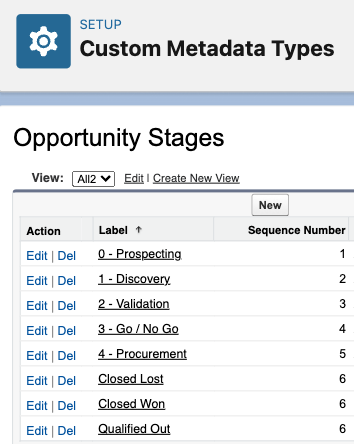
Step 1: Define the stage order. We created a Custom Metadata Type, one per object being tracked, with a single custom field: a sequence number. No validation rules, nothing fancy. The sequence number is the only thing that tells the system which stage comes before which.

Step 2: Create a record for every stage. Each stage on the path gets its own metadata record, labeled to match the stage name exactly, with its position in the sequence. If a process has multiple flavors of “closed” (Closed Won, Closed Lost, Qualified Out, in our case), they all get the same sequence number, since none of them come before the others.
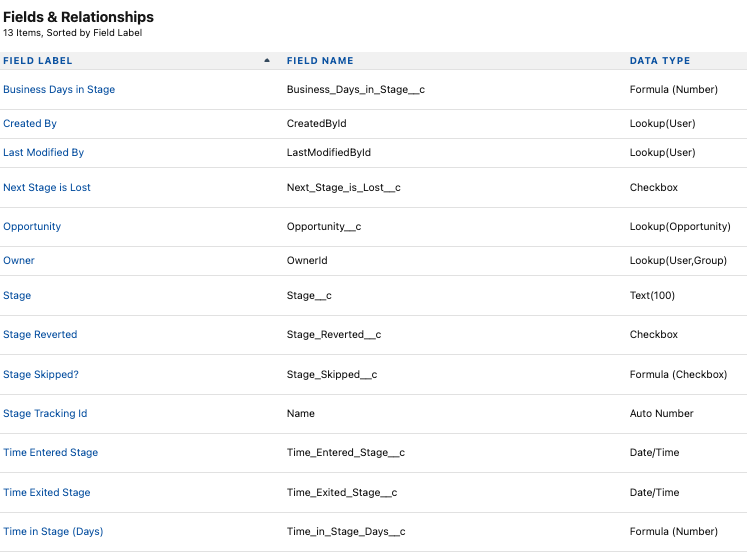
Step 3: Build the object that actually holds the history. This is a new Stage Tracking object related to the object it’s watching. It logs the stage, when the record entered it, when it exited, and a couple of formula fields that calculate business days in that stage and whether a stage got skipped entirely. Everything else you’d want to know, like account name or deal size, doesn’t need to live here, it shows up in the report through the relationship instead.
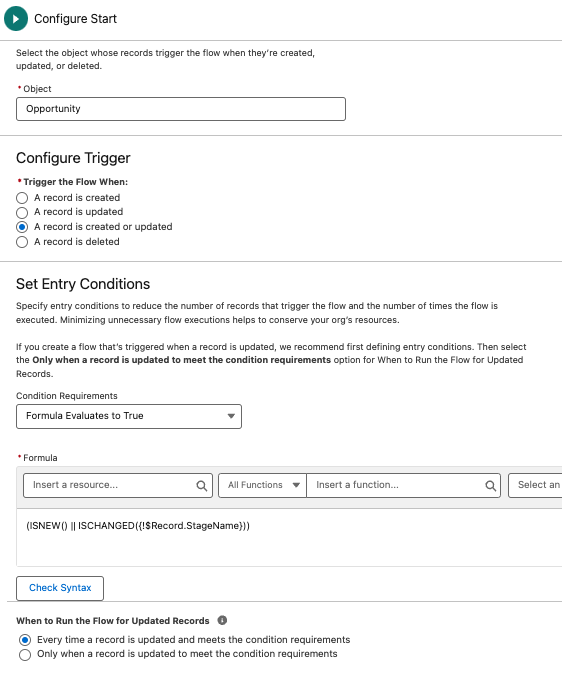
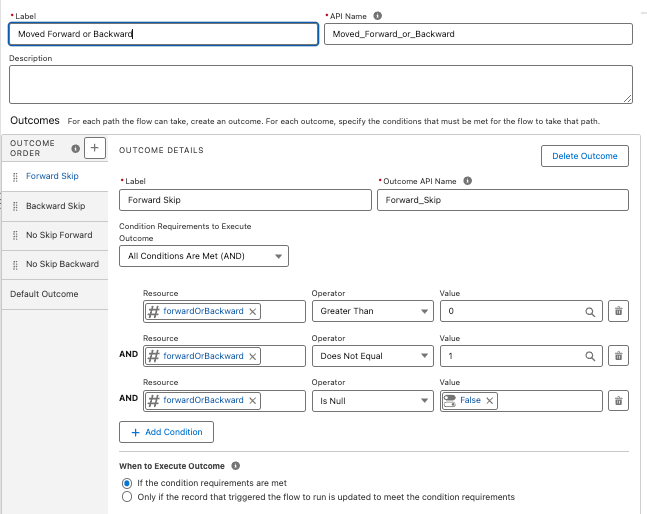
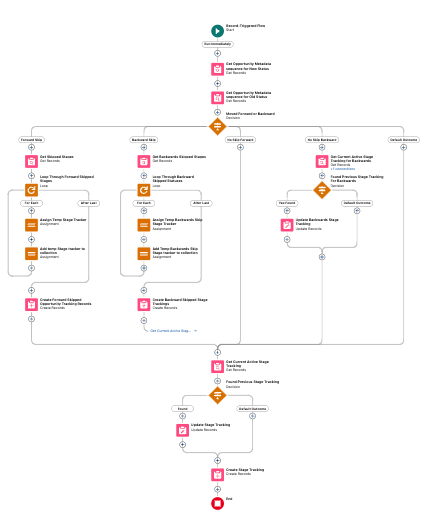
Step 4: Automate it with a flow. A record-triggered flow fires whenever an Opportunity is created or its stage changes. It pulls the sequence number for the new stage and the old one, compares them, and decides what happened, such as moved forward normally, skipped ahead, or didn’t change at all.
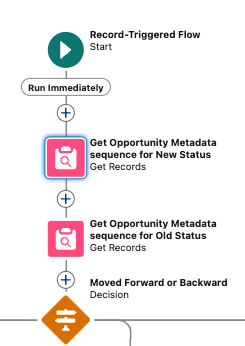
Each outcome gets handled differently. A normal forward move just closes out the old stage tracking record and opens a new one. A skip creates a tracking record for every stage that got jumped, with zero time logged, so the skip itself is visible in reporting instead of silently disappearing. A backward move does the same thing in reverse, which matters if your process needs to catch deals that regress, not just ones that advance.
Strung together, the full flow looks like this. It’s more branches than it looks like it needs at first glance, because forward moves, backward moves, skips, and no-change updates all have to be handled as distinct paths, not one generic “update the stage” step.
We also added a validation rule that blocks skipped and backward stage moves outright, because that was this client’s actual sales process. That part is optional. The stage tracker works exactly the same with or without it, the validation rule is a business decision about your process, not a requirement of the tracking system itself.
What You Can Actually Ask Once It’s Running
Once stage tracking has been live for a few weeks, the questions it answers start to matter more than the setup that got you there:
- Sales cycle efficiency: how long, on average, does a deal sit in each stage, and is that number getting better or worse over time?
- Conversion and drop-off: what percentage of deals actually make it from one stage to the next, and where does the pipeline lose the most deals?
- Pipeline quality: are stages converting at a rate that suggests healthy qualification, or is a stage letting too much through, or filtering too aggressively?
- Forecasting: based on how deals have actually moved historically, how many currently in the pipeline are likely to reach the later stages on the timeline the business needs?
Remember, none of these numbers mean anything on day one. Thresholds for what counts as “fast” or “stuck” in a given stage aren’t something you can set in advance. They only make sense once you’ve watched real deals move for a few weeks. Set the thresholds after you have something real to measure them against.
So the next time someone asks how long a deal has been sitting in Validation, you’ll have an actual number instead of a guess. It will be baked into a standard monthly report showing whether that number is normal or a warning sign.
Salesforce will always tell you where a deal is, but you need to build on top of it to know how it got there.
More signals


Subscribe